ConnectPlus Logo

The InfoWest Connect Plus App

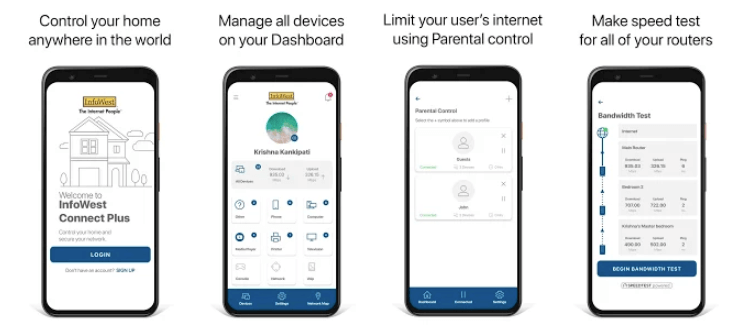
An intuitive, easy-to-use mobile application that puts the power of InfoWest at your fingertips!

Connect Plus allows subscribers to set up a guest Wi-Fi network, set parental controls, provide basic policy management, and associate devices in the network to household members.

Teenage Girl on Device

Key Features

infowest-connect-plus-mobile-app-screenshots
apple-app-store
google-play-store
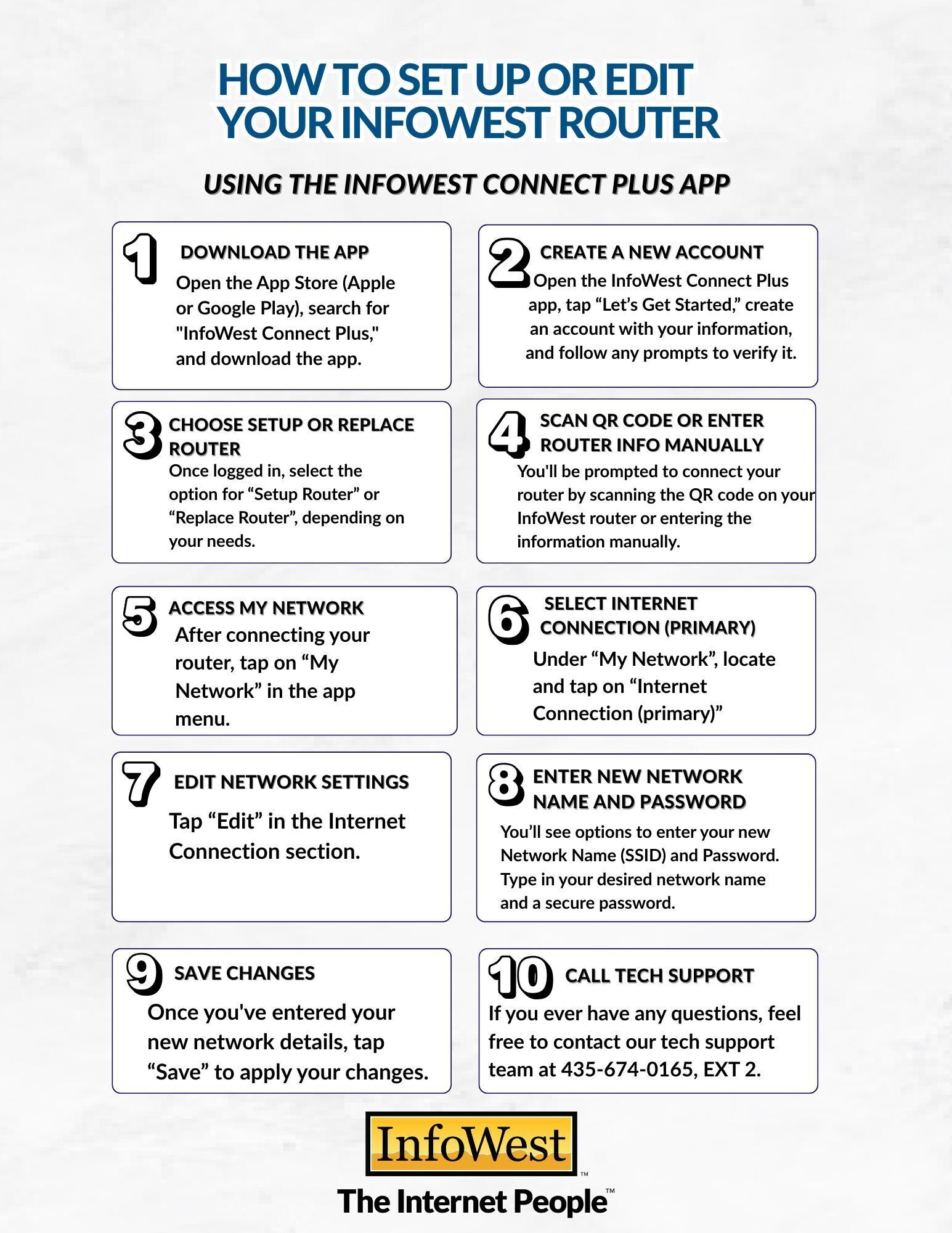
This image is an instructional infographic titled "How to Set Up or Edit Your InfoWest Router Using the InfoWest Connect Plus App." It features 10 numbered steps arranged in two columns, guiding the user through the installation and configuration process. The 10 Steps of Installation: Download the App: Search for "InfoWest Connect Plus" in the Apple App Store or Google Play Store. Create a New Account: Open the app, tap "Let's Get Started," and follow the prompts to create and verify an account. Choose Setup or Replace Router: Select the appropriate option based on whether you are setting up a new router or replacing an old one. Scan QR Code or Enter Router Info Manually: Connect the router by scanning its QR code or typing in the info manually. Access My Network: Once connected, tap "My Network" in the app menu. Select Internet Connection (Primary): Under the "My Network" section, tap on "Internet Connection (primary)." Edit Network Settings: Tap the "Edit" button in the Internet Connection section. Enter New Network Name and Password: Type in your desired Network Name (SSID) and a secure password. Save Changes: Tap "Save" to apply the new settings. Call Tech Support: For assistance, contact the tech support team at 435-674-0165, EXT 2. The bottom of the image features the InfoWest logo with the slogan, "The Internet People."

Get Started - Reach Out To Us Today!